Software pack
This chapter as a clean, readable HTML page.
The “Software pack” chapter of the Operating Manual, reproduced as a real HTML page. Anything unclear? Open the original PDF of just this chapter (pages 71-82) (also pinned top-left). Hub: all chapters.
In this chapter you can find out how to use our SW pack.
Always remember:
All devices must be flashed from the same SW Pack
Don’t look at the dates in the name of the file, they can be different, pay attention only to the name of the device.
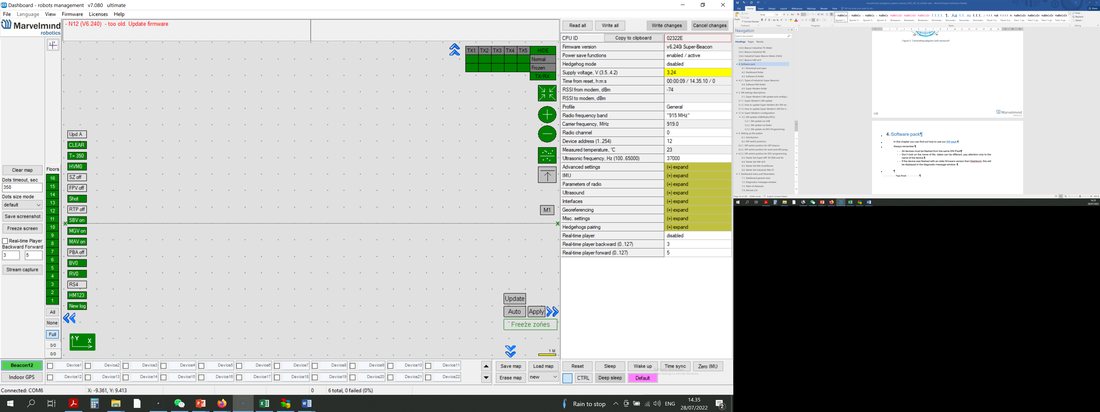
If the device was flashed with an older firmware version than Dashboard, this will be displayed in the diagnostic message window:
Changes in files in the Marvelmind SW pack (from SW version 7.200):
The SW files for beacons/modems that don’t require an update with the new release won’t be replaced with the latest files in the new SW pack. However, the Dashboard will assign them the new version number based on the newly introduced SW version compatibility table. Thus, the files physically remain the same. Still, if they are compatible with the latest SW pack, the Dashboard will automatically substitute their older SW version number with the latest SW version number.
It is done to detect and avoid the most common mistake by users-an attempt to run incompatible SW versions of beacons, modems, or Dashboards obtained from different SW packs, i.e., not updating the beacons/modems to the latest SW version from the same SW pack upon getting the equipment from Marvelmind Robotics.
Changes in the naming of SW versions and licenses (from SW version 7.200):
Optional SW features brought by MMSW0005 are now marked with an L at the end of the release name. For example, v7.200 – only base SW features are enabled – by default. Purchasing the MMSW0005 license activates optional features, and the SW version changes to v7.200L
Naming example IA vs. NIA: v7.200 and v7.200L – SW for NIA and MF NIA, v7.200i and v7.200Li – SW for IA
If some beacons don’t have the MMSW0005 license, their addresses are listed in the upper part of the Dashboard – information window. Note: MMSW0005 license is applicable to beacons only, not to modems.
Download and Open
Go to our website https://marvelmind.com/ => https://marvelmind.com/download/ and download the latest Marvelmind SW pack
Unzip the pack and open a folder
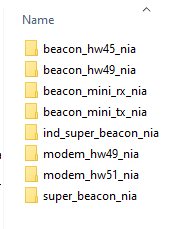
Note: The screenshots and folder descriptions below show an outdated software package structure. The current SW package is organized by device type (Super-Beacon, Mini-RX, Mini-TX, Modem, Super-Modem, etc.) rather than by IA/NIA architecture split. For an up-to-date description of the folder structure, refer to the PDF readme file in the root of the downloaded software package.
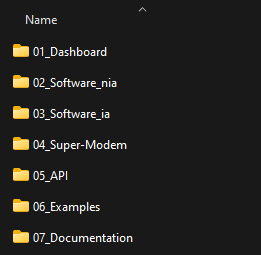
Folder with Marvelmind API library and C example
Folder with Dashboard software
Folder with documentation
Folder with misc. sample code
Folder with software for a modem and beacons for inverse architecture (IA)
Folder with software for a modem and beacons for non-inverse architecture (NIA)
Folder with software for a Super-Modem (same software for both NIA and IA).
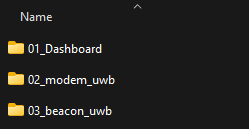
Folder with Dashboard
Folder with software for a modem for UWB
Folder with software for a beacon for UWB
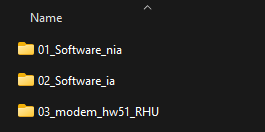
Folder with software for beacons for inverse architecture (IA)
Folder with software for beacons for non-inverse architecture (NIA)
Folder with software for an RHU Modem (same software for both NIA and IA).
Dashboard Installation Folder
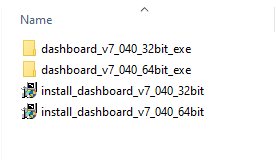
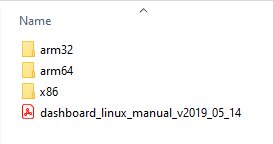
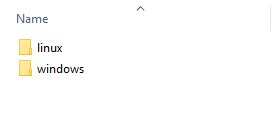 In this folder, you can find all modifications to the Dashboard.
Folder with Dashboard for Windows
Folder with Dashboard for Linux
You can either install it on your PC or use it from the package folder.
Dashboard Folder
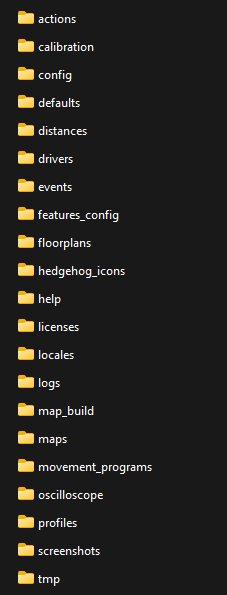 After opening the Dashboard or installing it on your PC you gain access to Dashboard folder which contains utility folders.
Saved oscilloscope screenshots
Saved screenshots
Saved maps
Saved logs
For licenses loading
Images for floorplan selection
Saved calibrations
“Windows Protected Your PC” Error
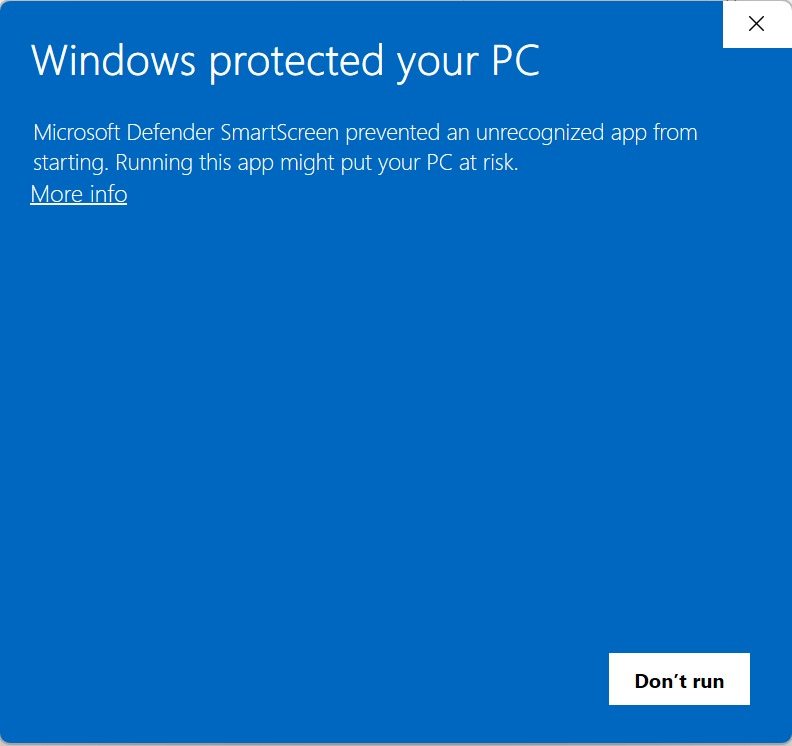
Sometimes, the new SW is uploaded before the certification for Marvelmind is received. In this case, Windows can prompt you with a warning window.
Here are the instructions on what to do:
Click “More info”
Click “Run anyway”
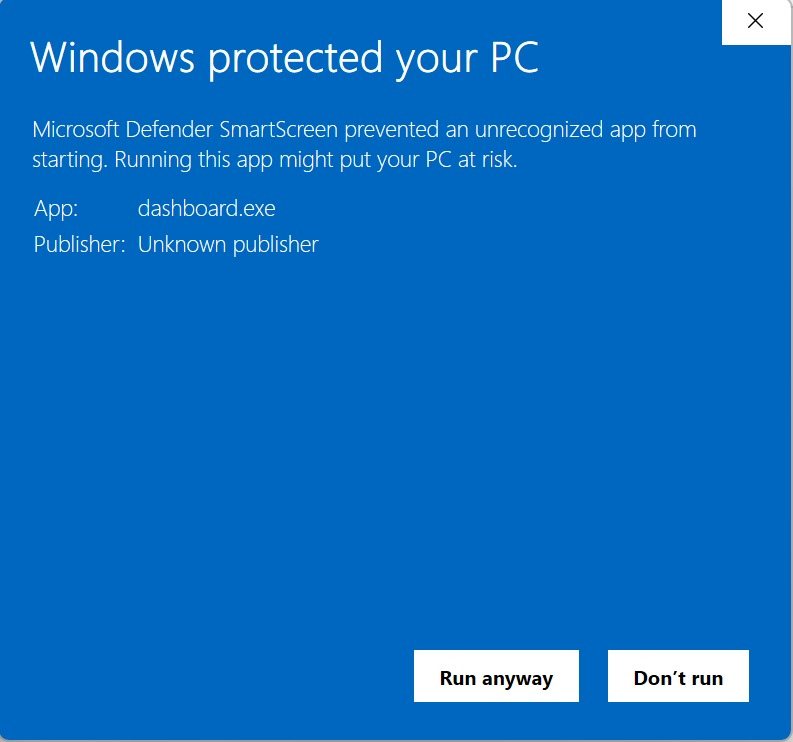
No worries about this window. All versions of Dashboards are tested and checked before publishing SW pack, but certification is not received yet. This sometimes happens and we fix it as soon as possible.
Software IA Folder
In this folder you can find all software to flash devices to build a map in Inverse Architecture. Use this folder to flash sets:
 Starter Set IA-04-2D-Badge
- Starter Set Super-MP-3D in Inverse Architecture

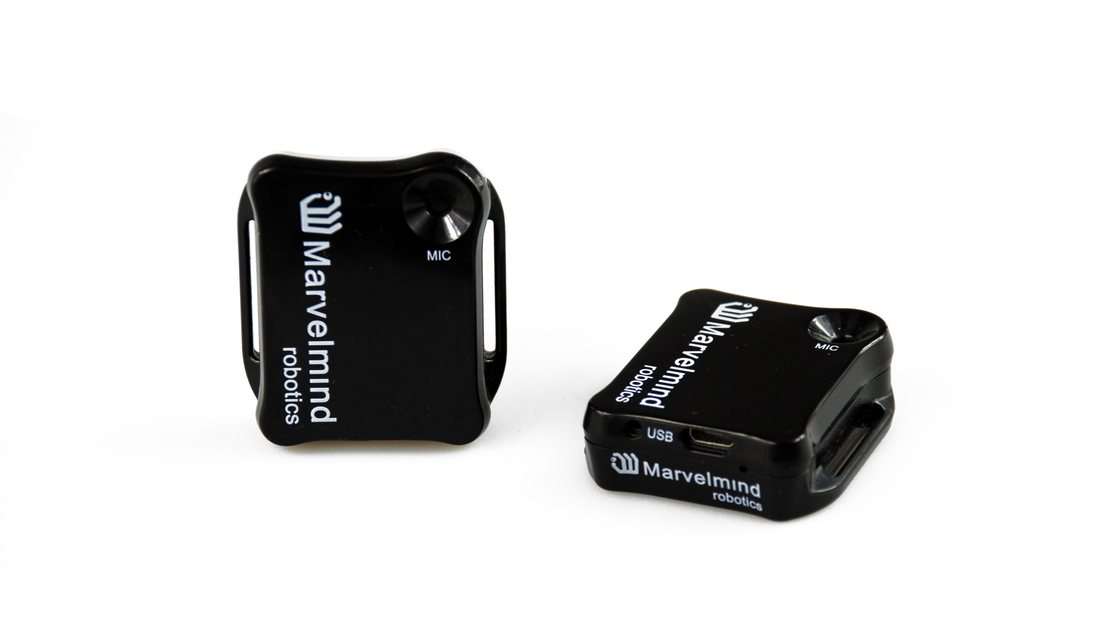
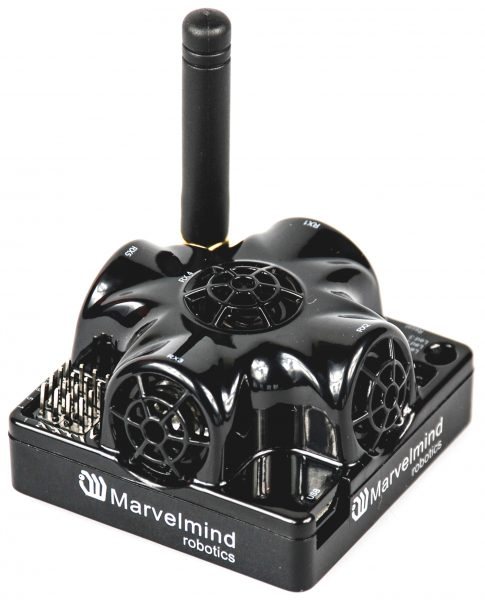
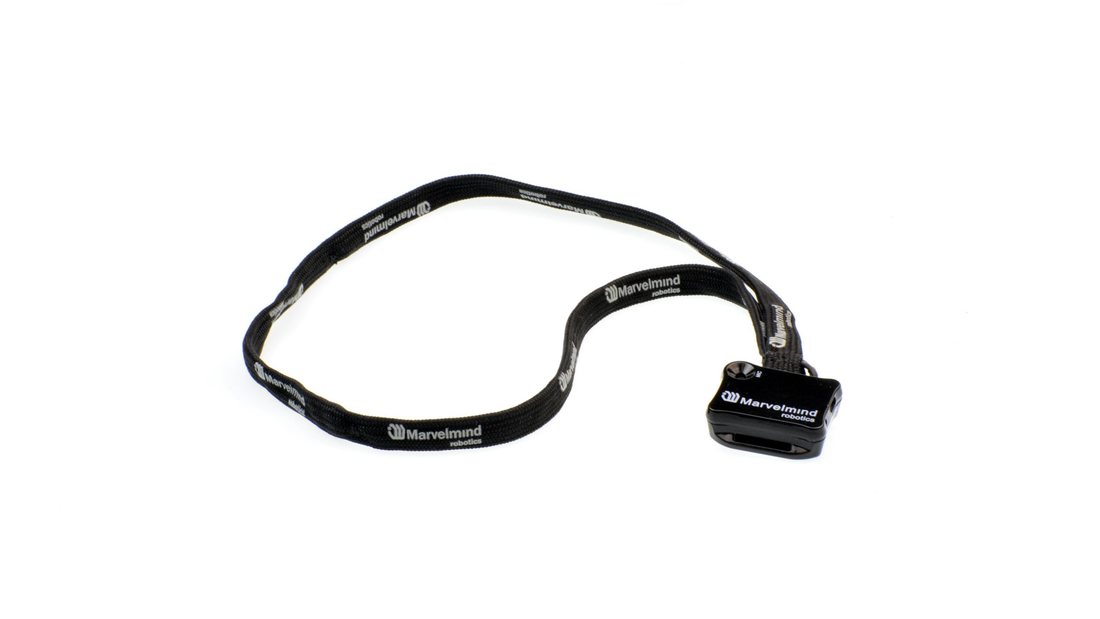
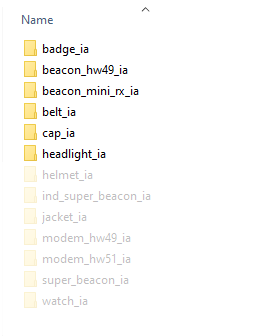
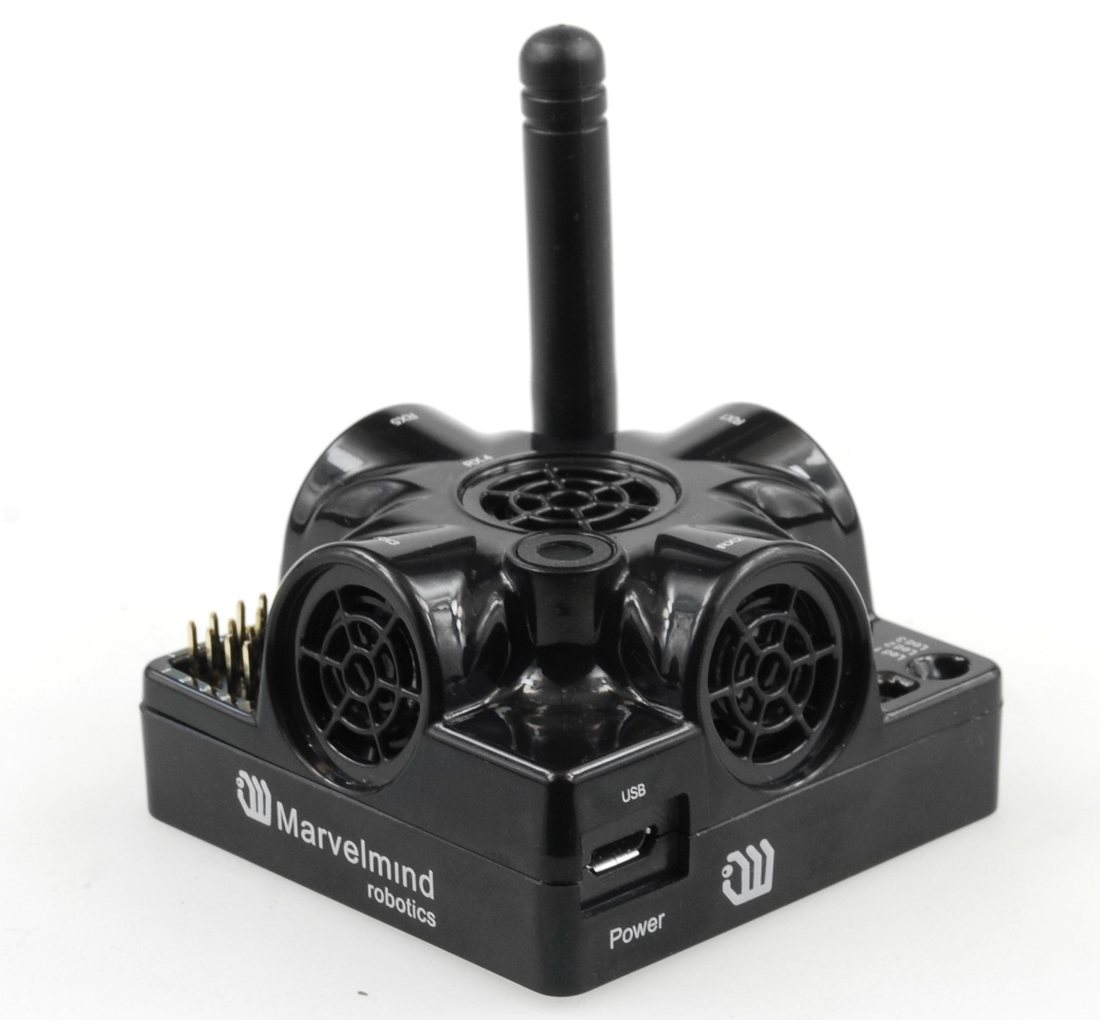
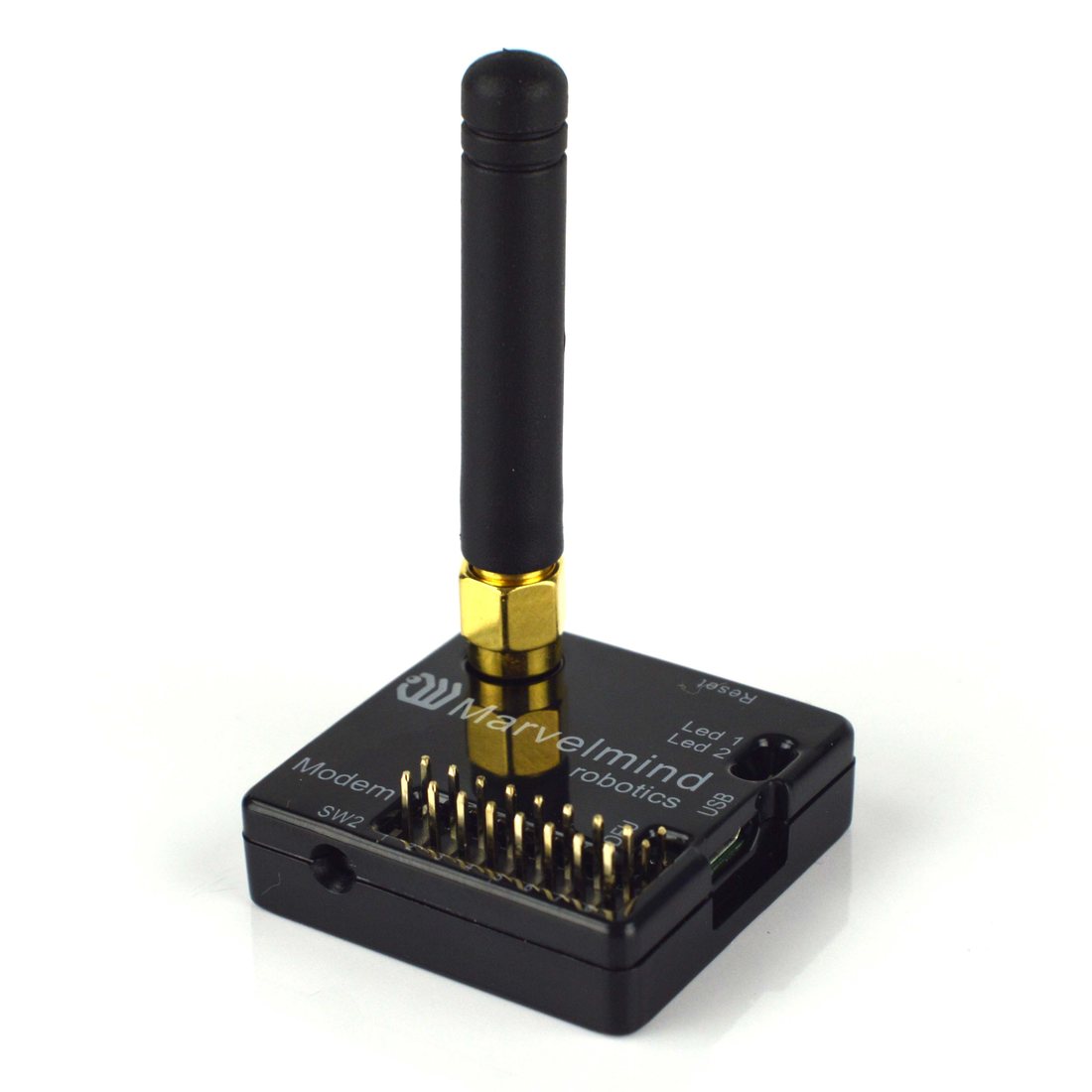
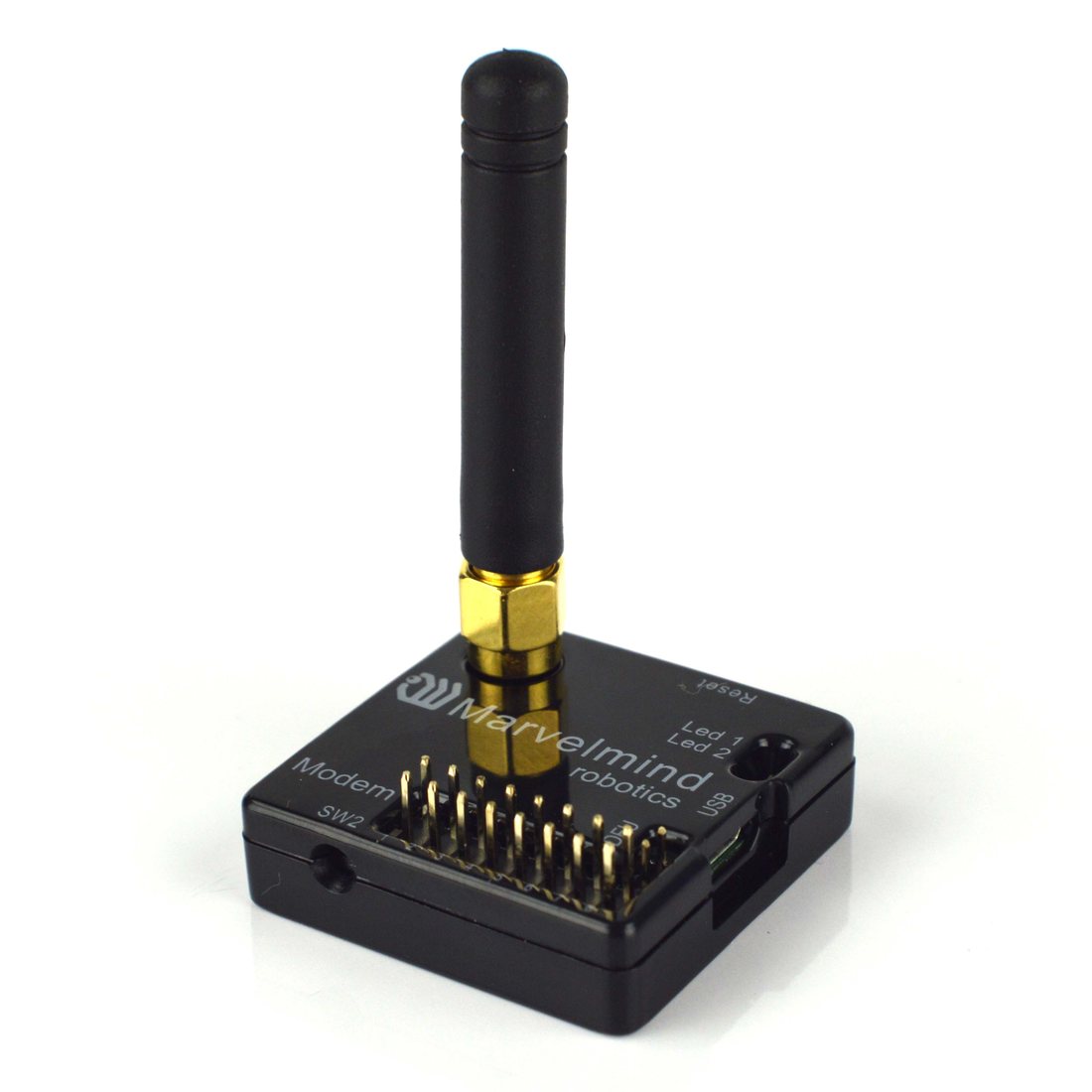
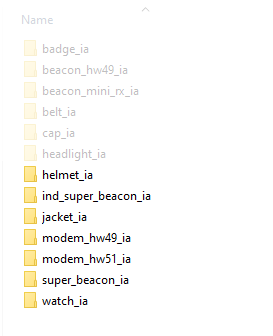
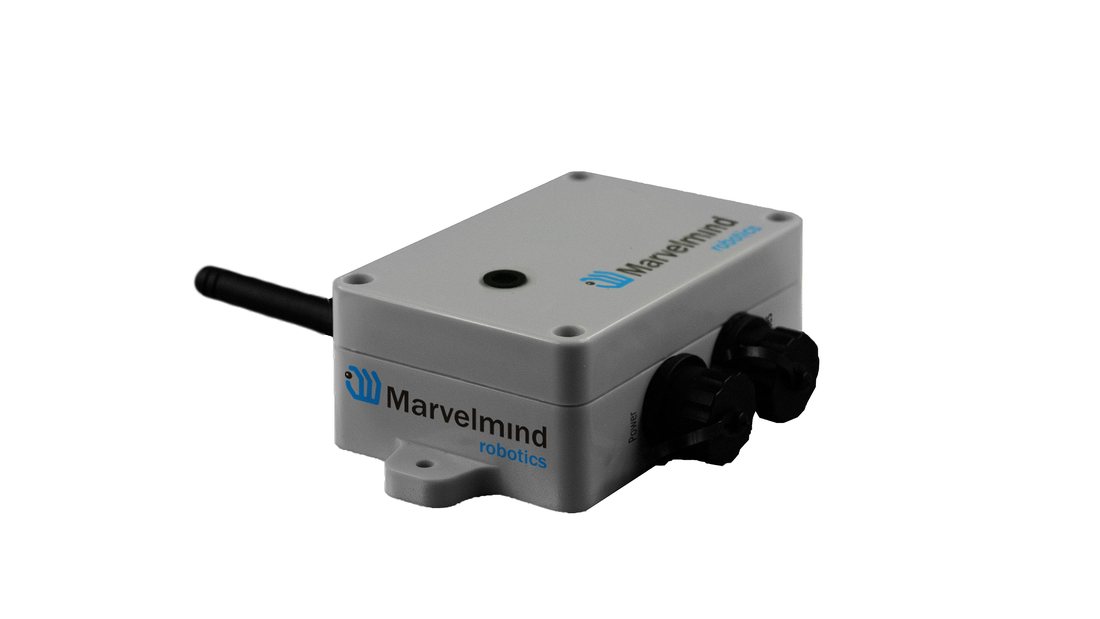
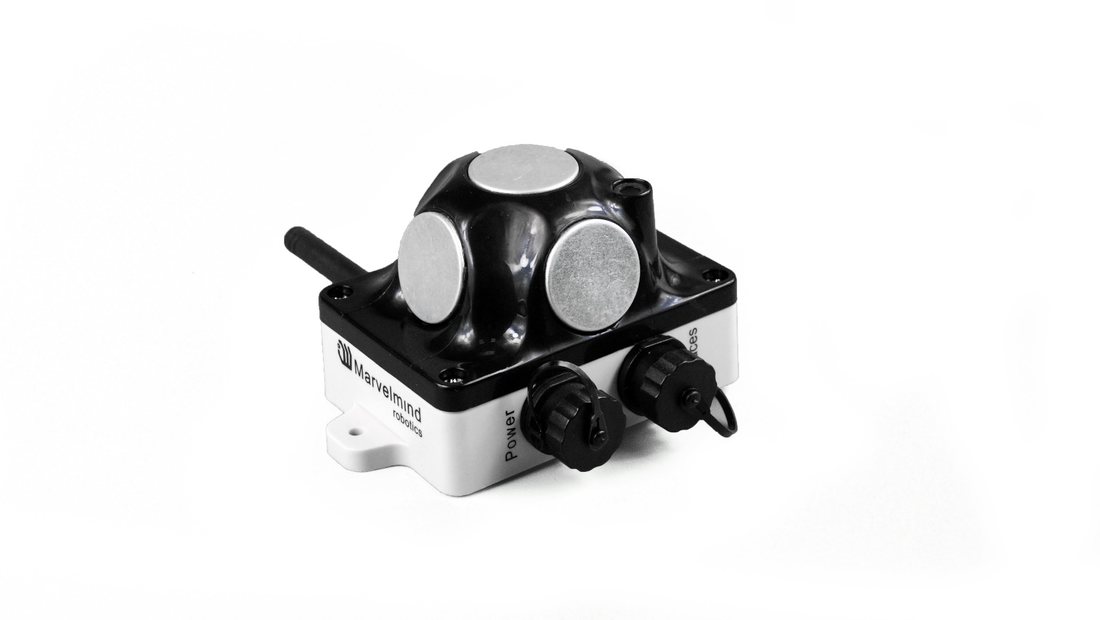
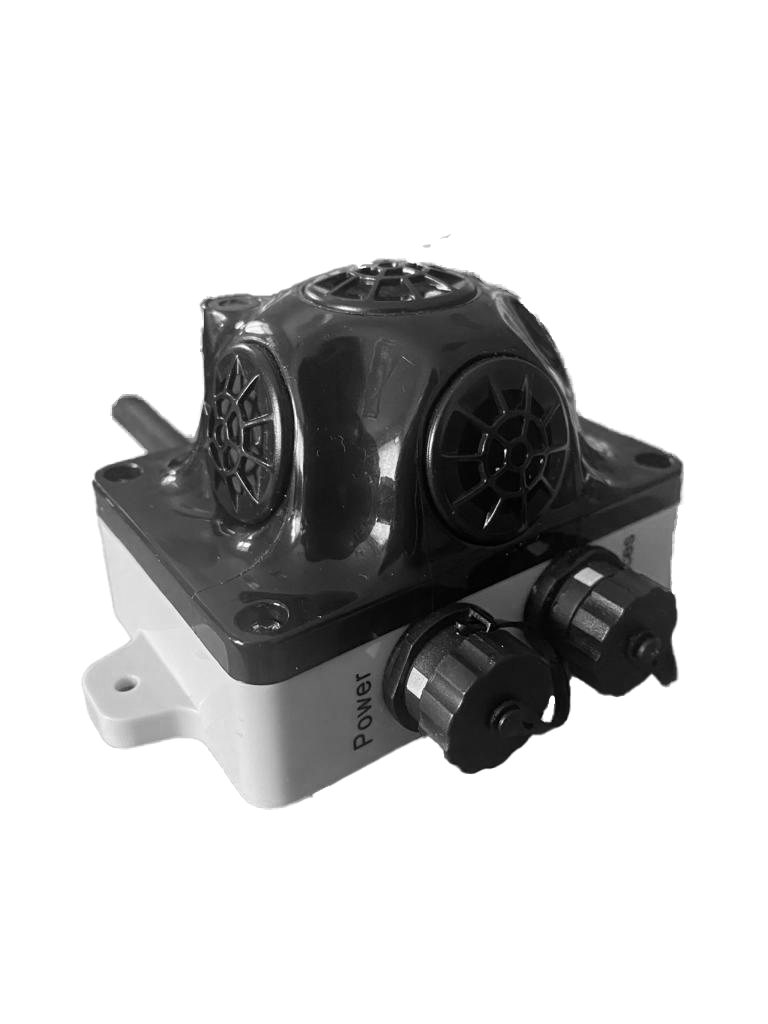
For Industrial Super-Beacons* (watch the next page to learn more about Industrial-Beacons types)
Types of Industrial-Super-Beacons:


Software NIA Folder
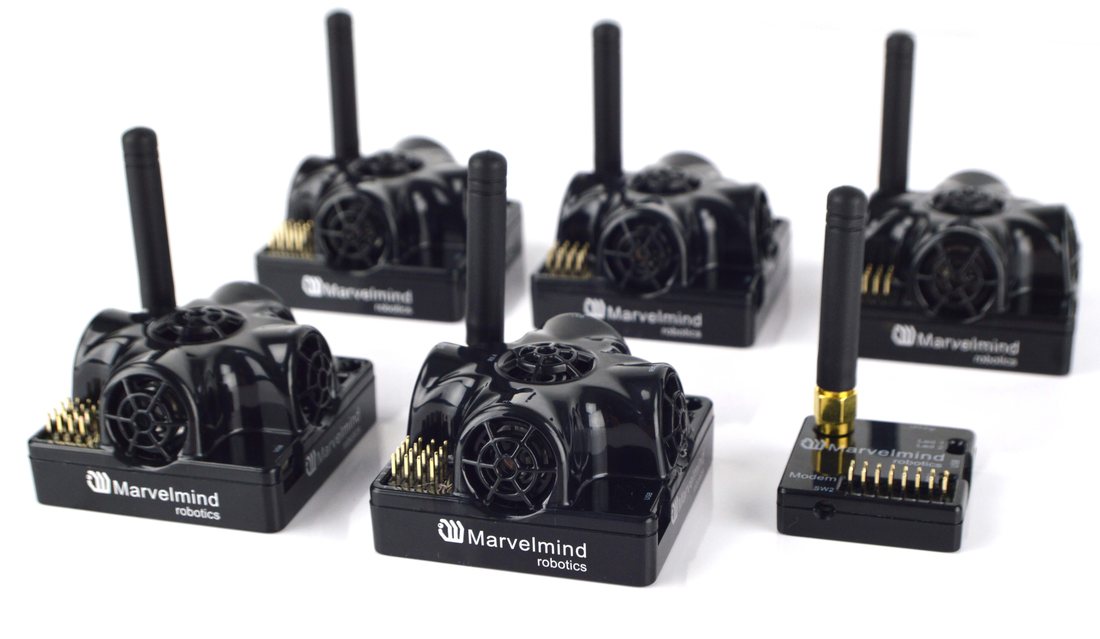
 In this folder, you can find all the oftware to flash devices to build a map in Non-Inverse Architecture. Use this folder to flash sets:
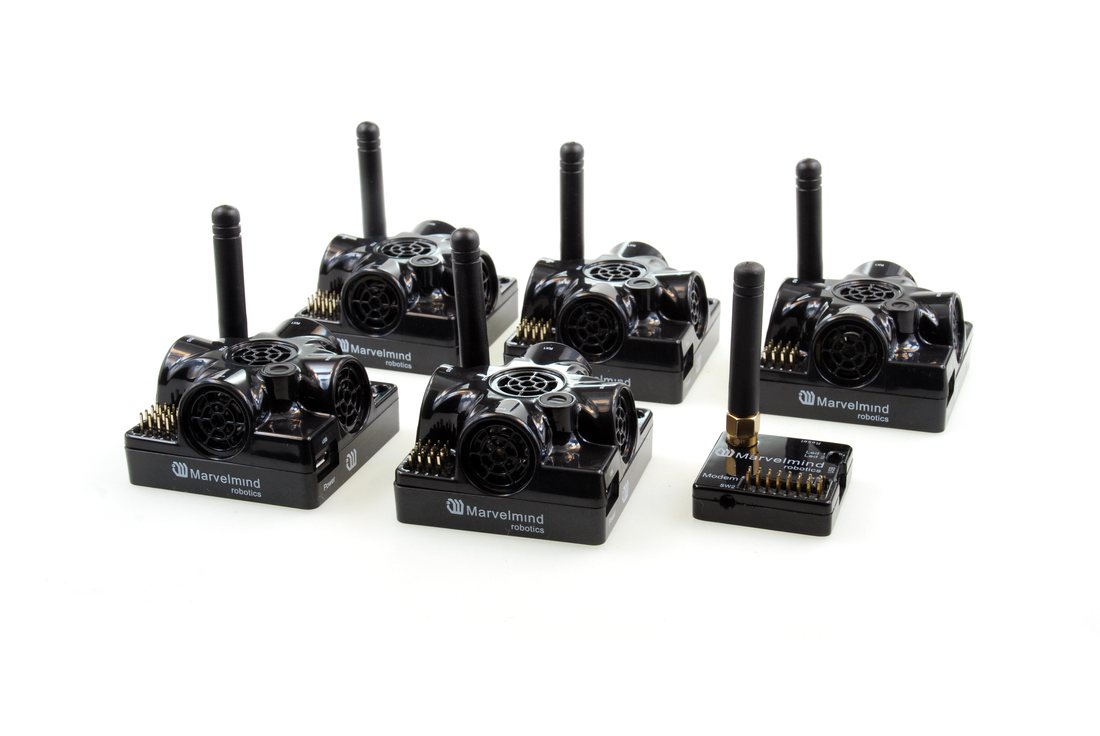
 Starter Set HW v4.9-NIA:
- Starter Set NIA-SmallDrone:
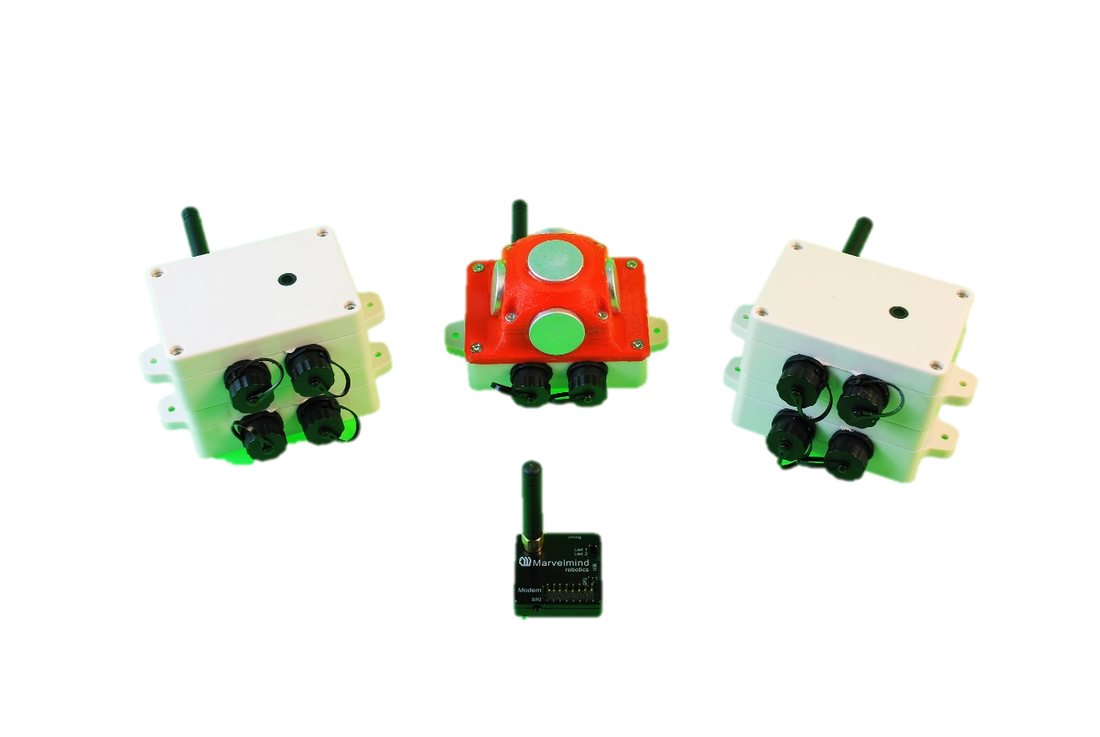
- Starter Set Industrial-NIA-01
 :
: - Starter Set Super-MP-3D in NIA:



 :
:

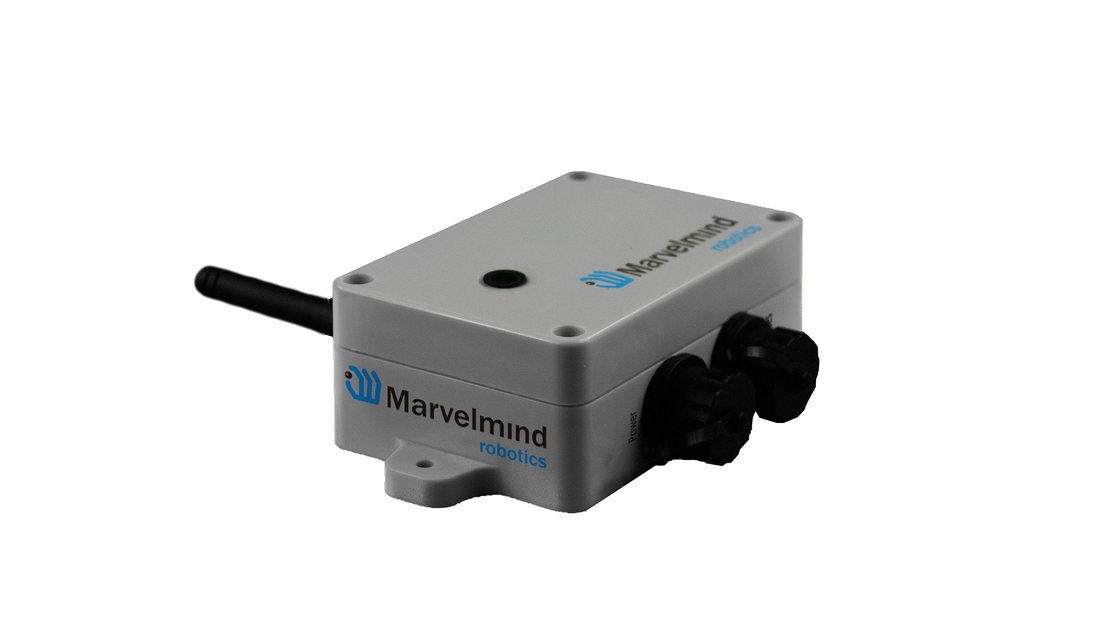
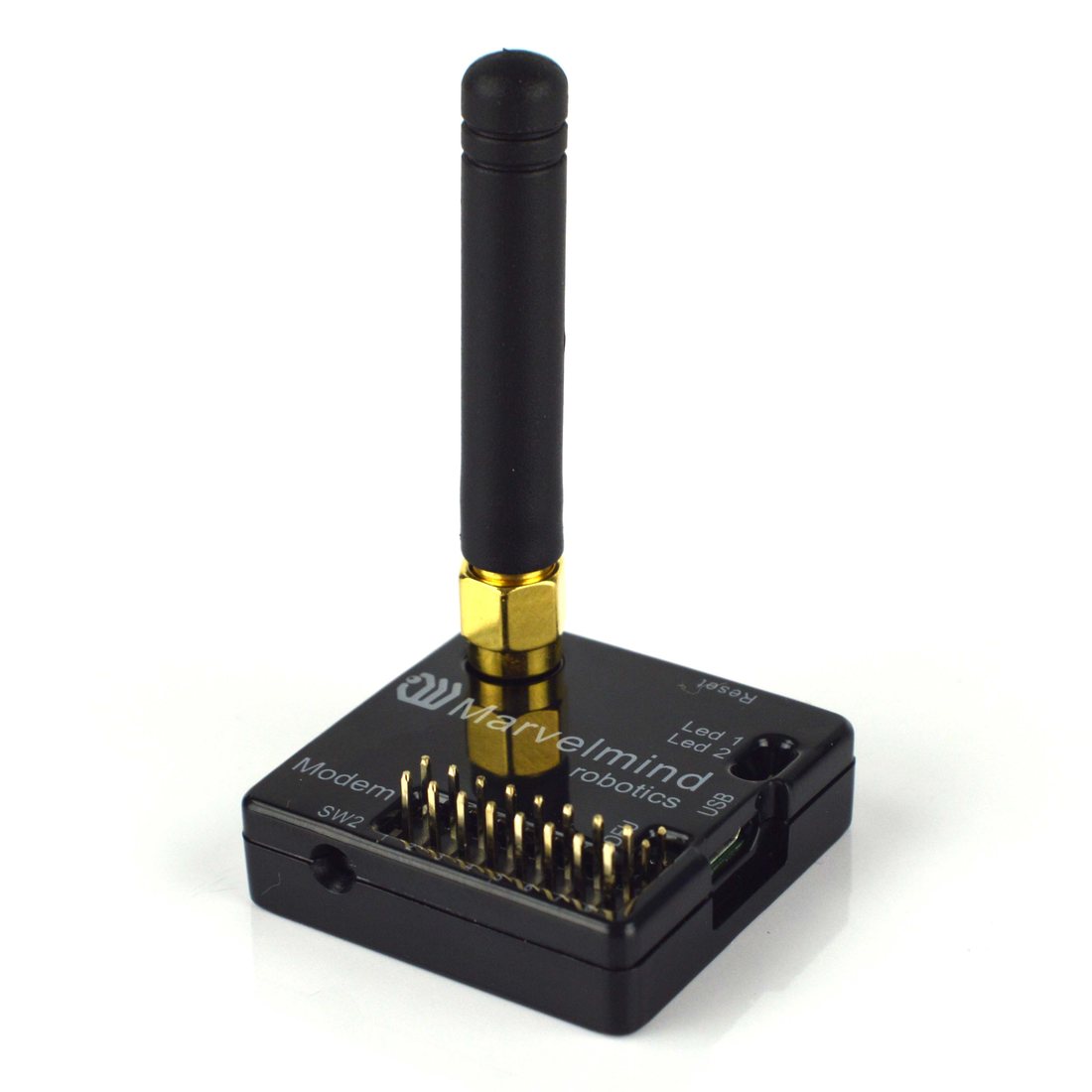
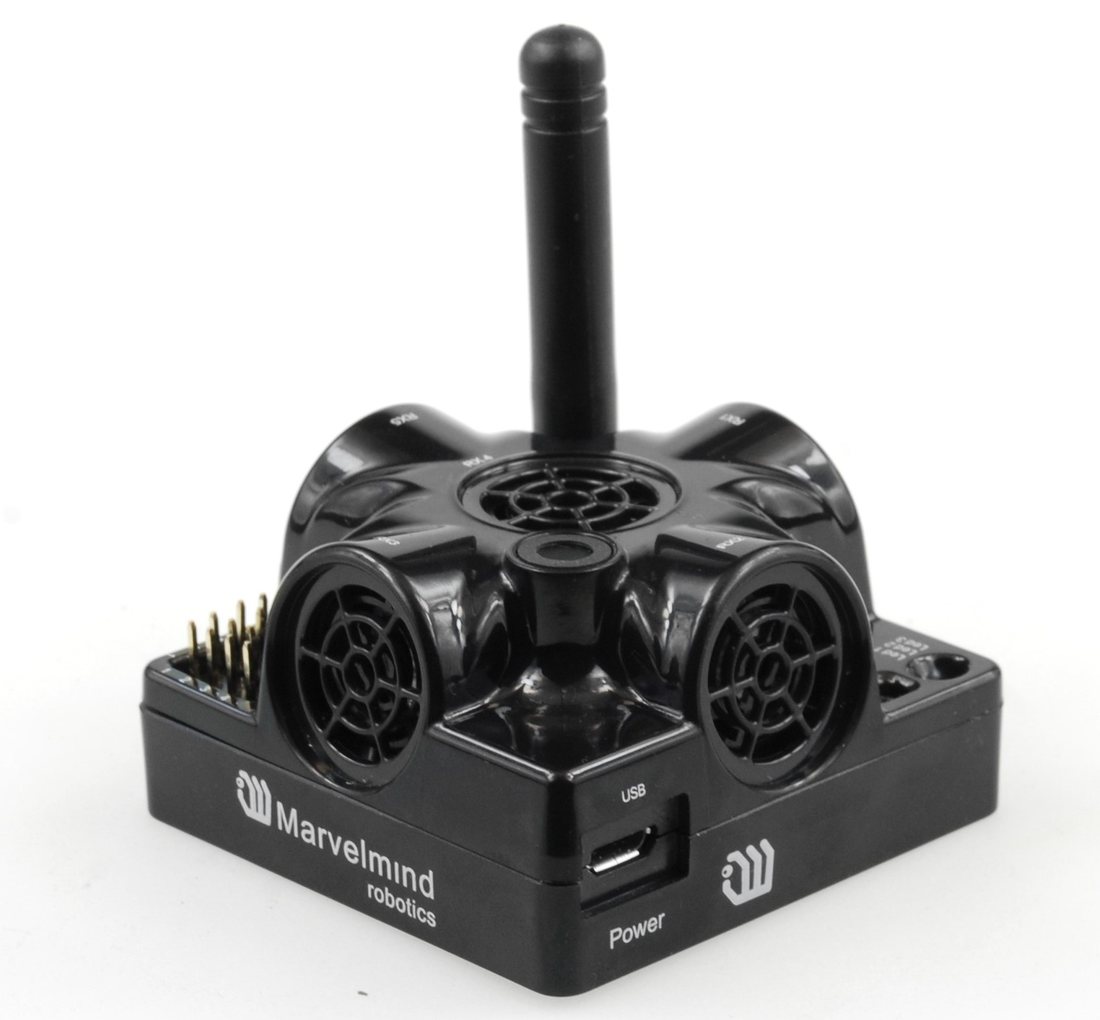
For Industrial Beacons:
For Beacon HW 4.9 433 and 915 NIA:
For Beacon HW 4.5
Super-Modem Folder
Folder with Super-Modem software (same software for both NIA and IA).
Warning! If your current Super-Modem software version is less than 7.000, you need to reflash the micro-SD card inside the Super-Modem for an update. The Super-Modem micro-SD card image is supplied in a separate archive because it is large.
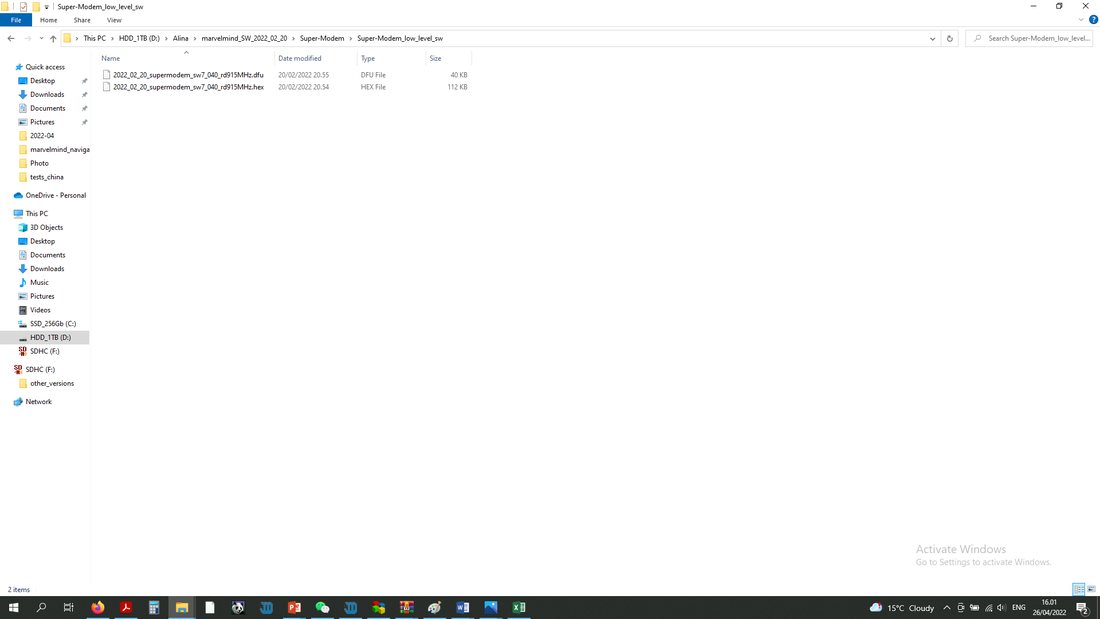
 After SW release v7.040, you can flash Super-Modem via Dashboard. Flash both levels – high and low.
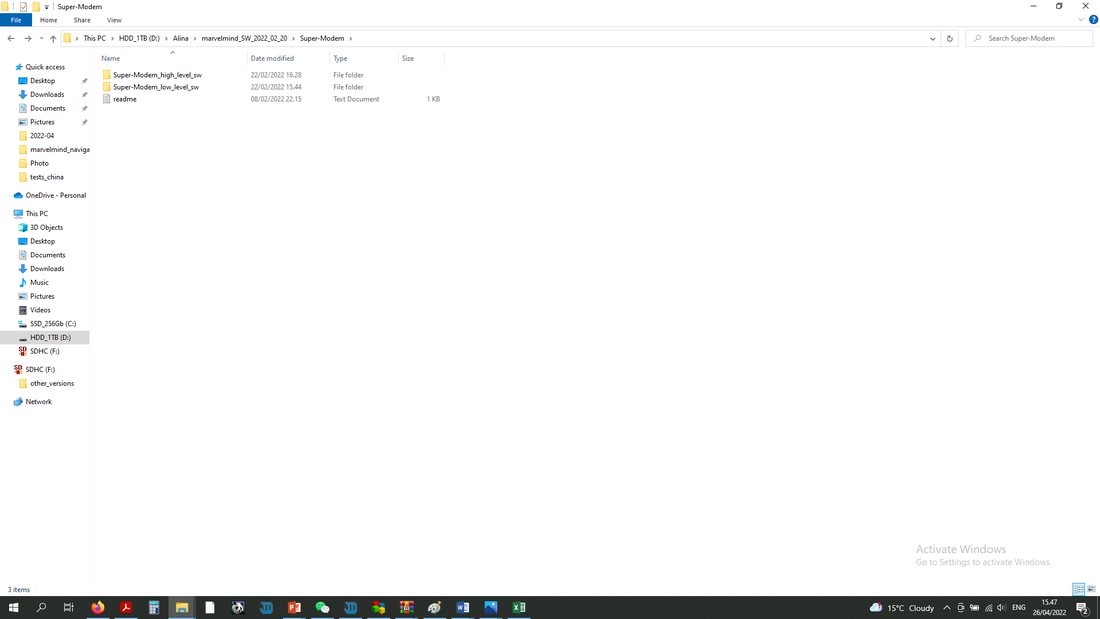
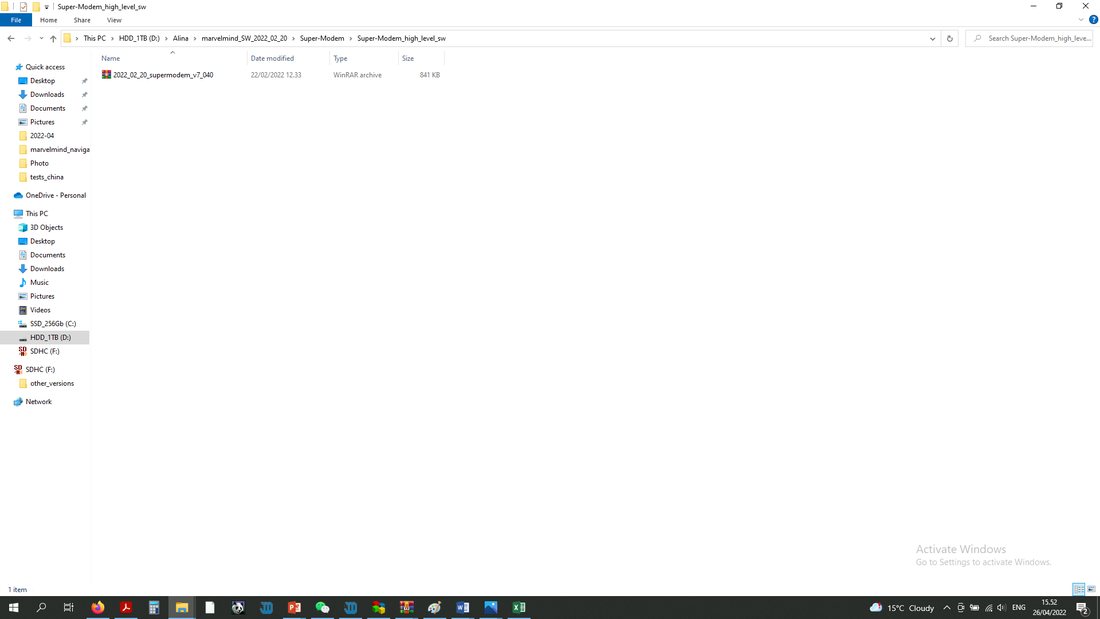
 If you need to reflash the micro-SD card, please refer to the downloads page and download SW for Super-Modem
DFU and HEX files for Super-Modem flash. Low level
Firmware for Super-Modem high level