
Solutions, FAQ, troubleshooting and contacts
This chapter as a clean, readable HTML page.
The “Solutions, FAQ, troubleshooting and contacts” chapter of the Operating Manual, reproduced as a real HTML page. Anything unclear? Open the original PDF of just this chapter (pages 301-308) (also pinned top-left). Hub: all chapters.
Solutions
Autonomous DJI Drones Indoors
Marvelmind provides a solution for integrating Marvelmind Indoor “GPS” system with DJI drones. Using the DJI SDK, we provide tracking and control DJI drones using DJI RC and Android phone with a Marvelmind app.
(stationary beacon)

 DJI drone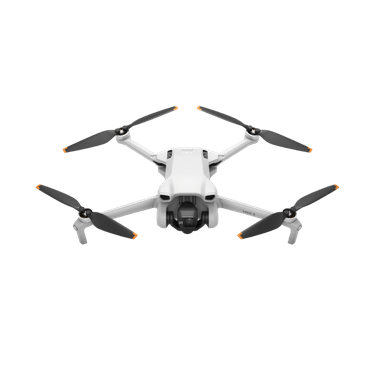

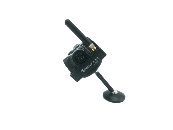
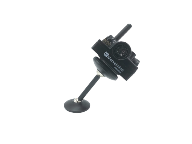


An example for 20×20 meter submap + 1 drone
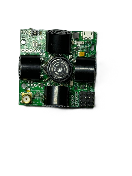
(Mobile beacon)
Lightened battery + no housing
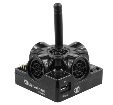
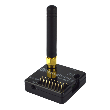
Modem HW 5.1:
– Central controller of the system. Collects data from all beacons and communicates via USB/virtual UART with Dashboard
Dashboard:
– Used for the setup of a system. Visual drone tracking. Streams to your ERP and WMS
DJI drone:
– Marvelmind system supports DJI drones starting from DJI Mini 3. Integration works via DJI SDK
Marvelmind app + DJI RC:
– Special Marvelmind Android app, which allows one to control a system remotely. Connects to a DJI RC

 Task:
Task:- To provide an autonomous indoor flight for DJI drones
- Automatically take pictures, scan QR codes, send location data
Solution:
- Marvelmind Indoor “GPS” system with a Marvelmind app for autonomous flight
Principle of operation:
- The Marvelmind Indoor GPS system in this configuration provides tracking an autonomous flight of a DJI drone using DJI SDK
Result:
- DJI drones autonomously flying according to waypoints in Dashboard, taking pictures or scanning and recognizing QR/bar codes, and sending them along with their precise coordinates to WMS or ERP
- Autonomous return to the base
Configuration:
- 4 x Super-Beacon – stationary beacons
- 1 x Super-Beacon (lightened) – a mobile beacon
- 1 x Modem HW 5.1 – a central controller of a system
- 1 x DJI drone – a trackable object (see the list of supported DJI drones below)
- 1 x DJI RC + Android phone with a Marvelmind DJI app – a controller of an autonomously fly pattern of a drone
- 1 x Windows/Linux laptop – used to install Dashboard and set up a system
List of supported drones:
*Expected to work well because it supports MSDK 5.0 but wasn’t tested. We can perform your tests by request. Request us by email info@marvelmind.com
Frequently Asked Questions
Here we will answer the most common questions
What is the proper way to place the beacons?
- The actual distance between beacons must be ≤ 30m. Provide the line of sight from one beacon to a minimum of two others
How far can beacons be located from the modem?
- In the open space, the distance from the modem to the beacon can reach several hundred meters
What if the hedgehog is shown as an orange circle or transparent inside the Dashboard?
- Blue – normal mode and confident tracking
- Orange – system provides the best location data possible, but confidence is lower than blue
- transparent – lost radio packets or no ultrasound coverage
What is the obstacle for ultrasound?
- The natural obstacles for ultrasound are walls (concrete), glass, and metal. If you need to cover a multiple-floor territory, you can use our Submap feature, in which case the tracking will not be interrupted
How the system works in very low and very high temperatures?
- System is designed for normal office-like conditions and temperatures 0 ºС – 40 ºС
 You can see some other types of beacons (outdoor, explosion safe, etc.) in the comparison table
- We can also produce some special versions which will suit your case. Please write to info@marvelmind.com
 You can see some other types of beacons (outdoor, explosion safe, etc.) in the
 Are beacons resistant to explosions, dust, dirt, water, and noise?
- – Low-frequency noise (motor noise, industrial equipment) does not interfere with the normal operation of the system
- You can see some other types of beacons (outdoor, explosion safe, etc.) in the comparison table
 You can see some other types of beacons (outdoor, explosion safe, etc.) in the
 What is the time of delay between positioning the object and responding?
- The delay is directly proportional to the update rate. For example, if the update rate is 16 Hz, the delay is 1.2:1.5×60 ms
- The limit is 1.5 times the maximum distance between the stationary beacons. Please follow the instructions in the attached screenshot to expand the service area. Notice that positioning the mobile beacon far from stationary beacons and close to their plane may result in increased positioning error because of lousy geometry of measurement
How do I define IMU or not IMU beacon?
- Check the white sticker on the box and the beacon’s bottom /IMU – with IMU
- Connect beacon via USB: Dashboard => View => Accelerometer data
Can we use a non-IMU beacon as a mobile beacon or not?
- Yes, you can (https://www.youtube.com/watch?v=A4aRsjH2-_E)
What is the reason to choose 915Mhz vs 433Mhz?
- The 915 MHz version is designed for the US, Canada, and the Americas in general. The ISM band (license-free band for industrial, science, and medical applications) in those countries is 915 MHz
- In Europe, it is 433 MHz
Devices do not connect via USB?
- Use a USB cable with a long metal part. If you have any problems with the USB connection, change the cable first. One cable can work for one device and do not work for other
Does the orientation of the beacon matter?
- Yes, it is. Place and orientate it in positions where sensors can “hear” each other. v4.9 beacon has ≈90° per sensor coverage(illustration), Mini-RX and Industrial-RX have ≈180° coverage(illustration)
 Yes, it is. Place and orientate it in positions where sensors can “hear” each other. v4.9 beacon has ≈90° per sensor coverage(
Why Dashboard does not see more than 4 beacons
- System has a limitation of 4 beacons per submap. If you have more than 4 beacons, create another submap, and beacons will appear
Troubleshooting Checklist
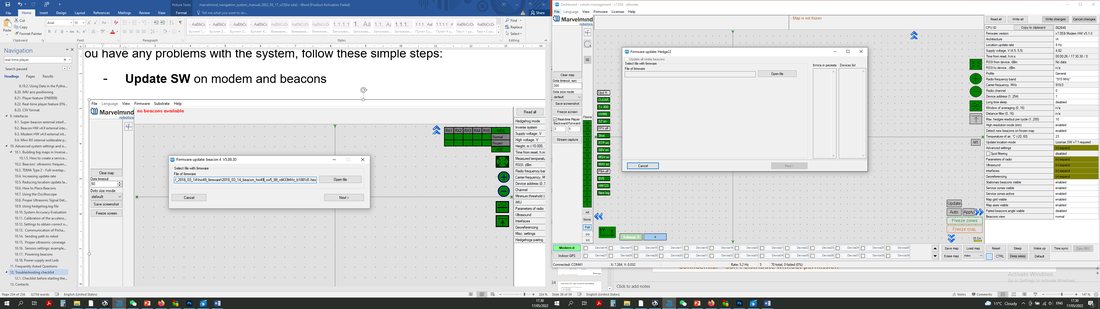 If you have any problems with the system, follow these simple steps:
- Update SW on modem and beacons
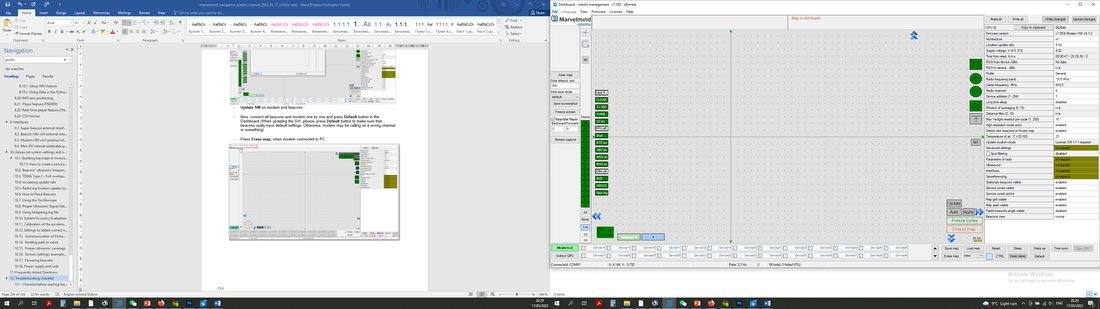
- Now, connect all beacons and modem one by one and press the Default button in the Dashboard (When updating the SW, please press the Default button to make sure that beacons have default settings. Otherwise, the modem may be calling on the wrong channel or something)
- Press Erase map when the modem is connected to the PC
Check our help video:
Typical mistakes with Precise Indoor “GPS”
Checklist Before Starting the System:
IA and NIA SW differs
 For IA, you should use stationary beacons with different frequencies
Make sure that you use the correct SW. Inverse Architecture(IA) SW for Inverse system, Non-Inverse Architecture(NIA) SW for Non-Inverse system (Architectures comparison)
Make sure that your beacons are 3.5 V and higher before using them. If not, charge it for 2-3 hours.
- Keep modem 1-2m away from beacons. if closer, the beacon radio may be overloaded
- Antenna’s recommendations:
- The antenna must be kept as straight as possible. Otherwise, it will reduce the effective range
- The antennas must be kept away from conductive materials, such as metal and carbon, by at least a half inch
- Keep the antennas away from the motors and other noise sources as much as possible
- Use a USB cable with a long metal part. If you have problems with the USB connection, change the cable first. One cable can work for one beacon and not work for other
- Be sure that you use SW from the same pack
- When updating the SW, please press the Default button to make sure that beacons really have default settings. Otherwise, the modem may be calling on the wrong channel or something
- Start with a simple configuration (10x10m square, 2 stationary beacons)
- Do not obstruct the line of sight between beacons
- Build the map first, freeze it, then wake up the “hedge”
 Number of periods. By default – 5 for HW v4.9. 20 for Super-Beacon, 50 for Mini-TX. For longer distances, you can put 10-50
 Number of periods. By default – 5 for HW v4.9. 20 for Super-Beacon, 50 for Mini-TX. For longer distances, you can put 10-50
Mini-RX beacon may be over-discharged. In that case, do the following:
- Turn off the beacon with DIP switches
- Charge it for 1 hour
- Turn the beacon on, flash the latest SW via DFU Programming, and charge it for 1 hour again
Contacts
For more information about the company, check About us
For additional support, please send your questions to info@marvelmind.com